
Getting started
From download to your first chapter in a few minutes.
Installing Mofu
- Download the appOpen mofu.blanket.party on your Android phone and tap Download for Android. The file is a few megabytes.
- Allow the install, onceAndroid asks whether your browser may install apps. Allow it, then open the downloaded file and confirm. Mofu needs Android 8 or newer.
- Sign in or create an accountMofu asks for a username and a password. There is no email step. If you already have an account from another phone, sign in with the same details and your shelf comes with you.
Mofu is shared privately, so it is not on the Play Store and the one-time browser permission is expected. After the first install, new versions arrive from inside the app. See Updating Mofu.
Adding your first title
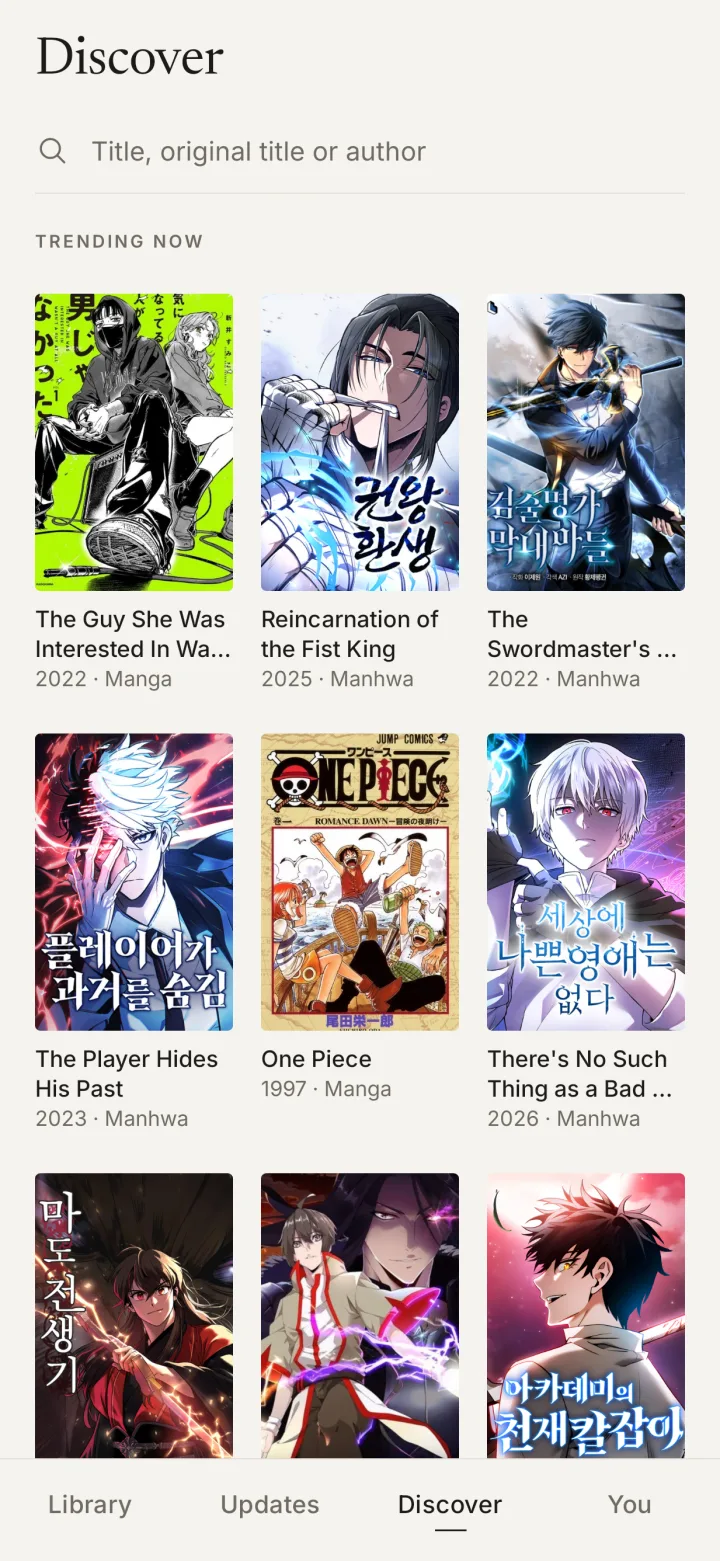
- Open the Discover tab. It opens on what is trending right now.
- Search by title, original title or author.
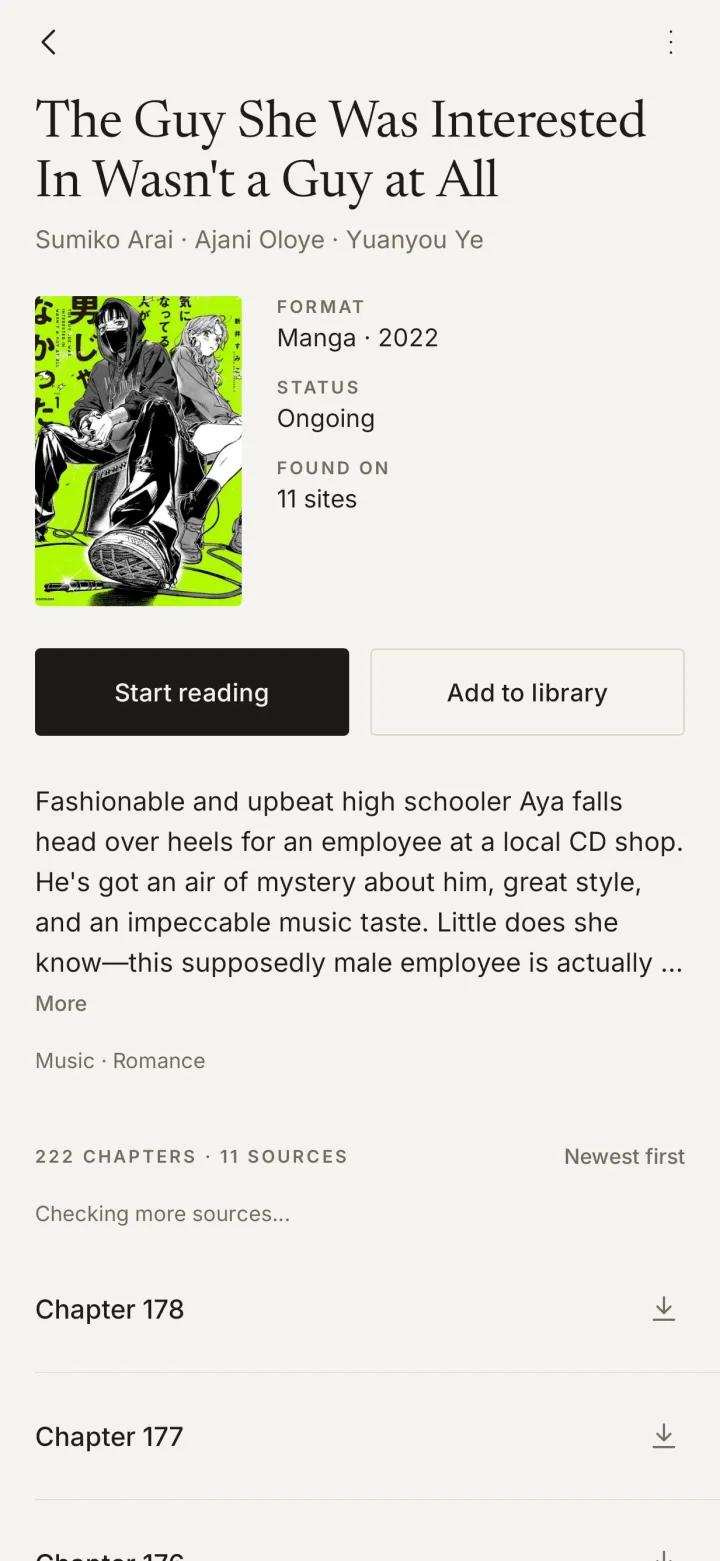
- Tap a result to open its page. You will see the format, status, and how many sites it was found on.
- Tap Add to library, or Start reading to jump straight in.
Library
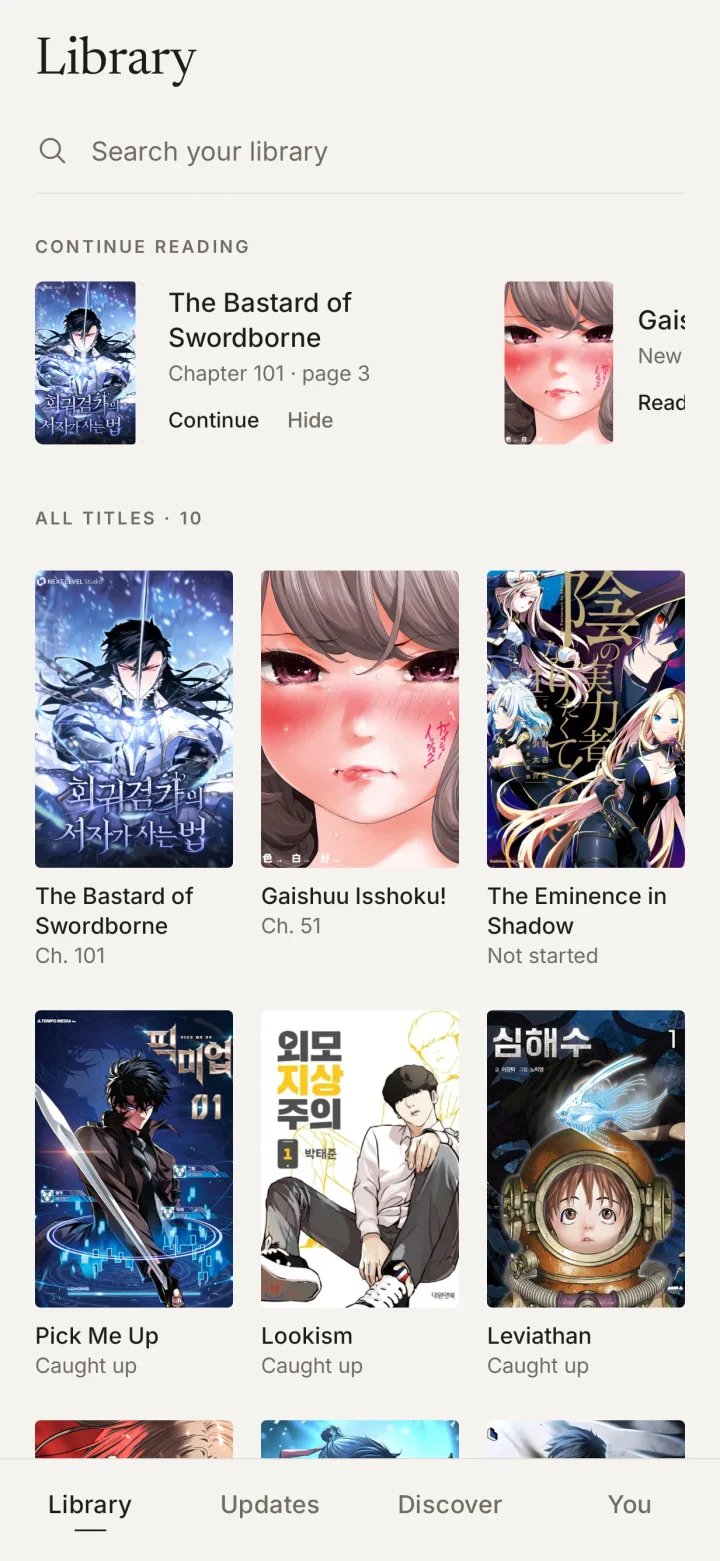
Your shelf. Everything you have added, with where you left off.
Continue reading
The row at the top shows titles with unfinished chapters, newest activity first, with the chapter and page you stopped on. Tap Continue to pick up exactly there.
Hide removes a title from the row on this phone. It comes back on its own the next time your progress changes, and there is an Undo line right after you hide it.
All titles
The grid lists every title on your shelf. Under each cover you see where you are: a chapter number, Caught up when you have read everything available, or Not started.
Searching your shelf
The search field matches titles, alternative titles and authors, and ignores accents. If nothing on your shelf matches, Mofu offers Search Discover with the same words.
Discover
Find something new, or find the exact thing you are looking for.
Trending now shows what is popular at the moment. The search field looks through titles, original titles and authors.
Each result opens a title page with the format and year, status, a description, and a single chapter list merged from every site where the title was found. Mofu keeps checking more sources in the background while you look, so the chapter count can grow for a moment after the page opens.
Chapters can be sorted newest first or oldest first. Each chapter has a download icon so you can keep it on the phone for reading offline.
If you would rather not see adult titles, turn on Filter adult content in Settings. It applies to Discover and search on every phone you sign in on.
The reader
Two ways to read, and nothing in the way.
Pages or scroll
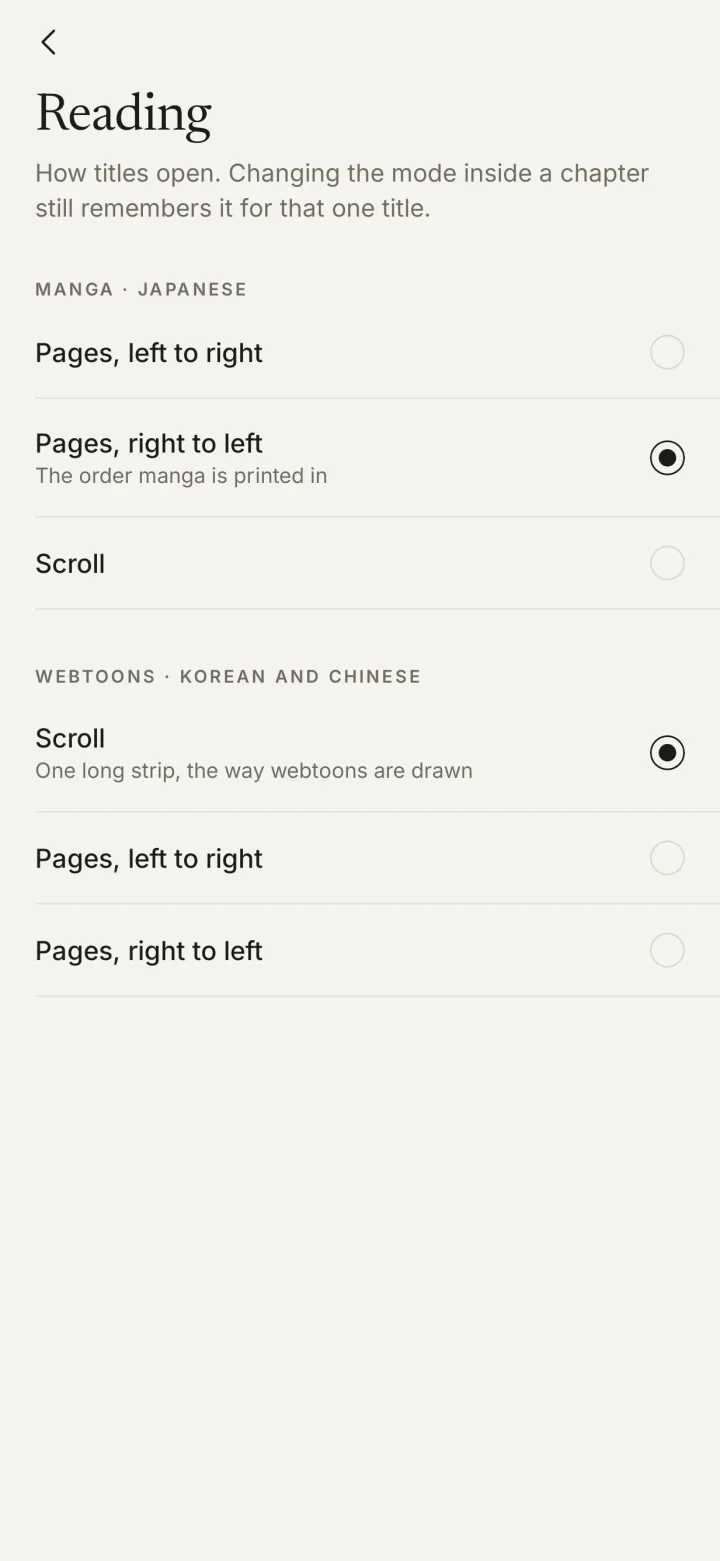
Mofu picks a default for each kind of title: manga opens as pages, webtoons as a scroll. You can change those defaults in Settings → Reading. Choosing a mode inside the reader remembers it for that title, and a per-title choice always wins over the default.
Controls
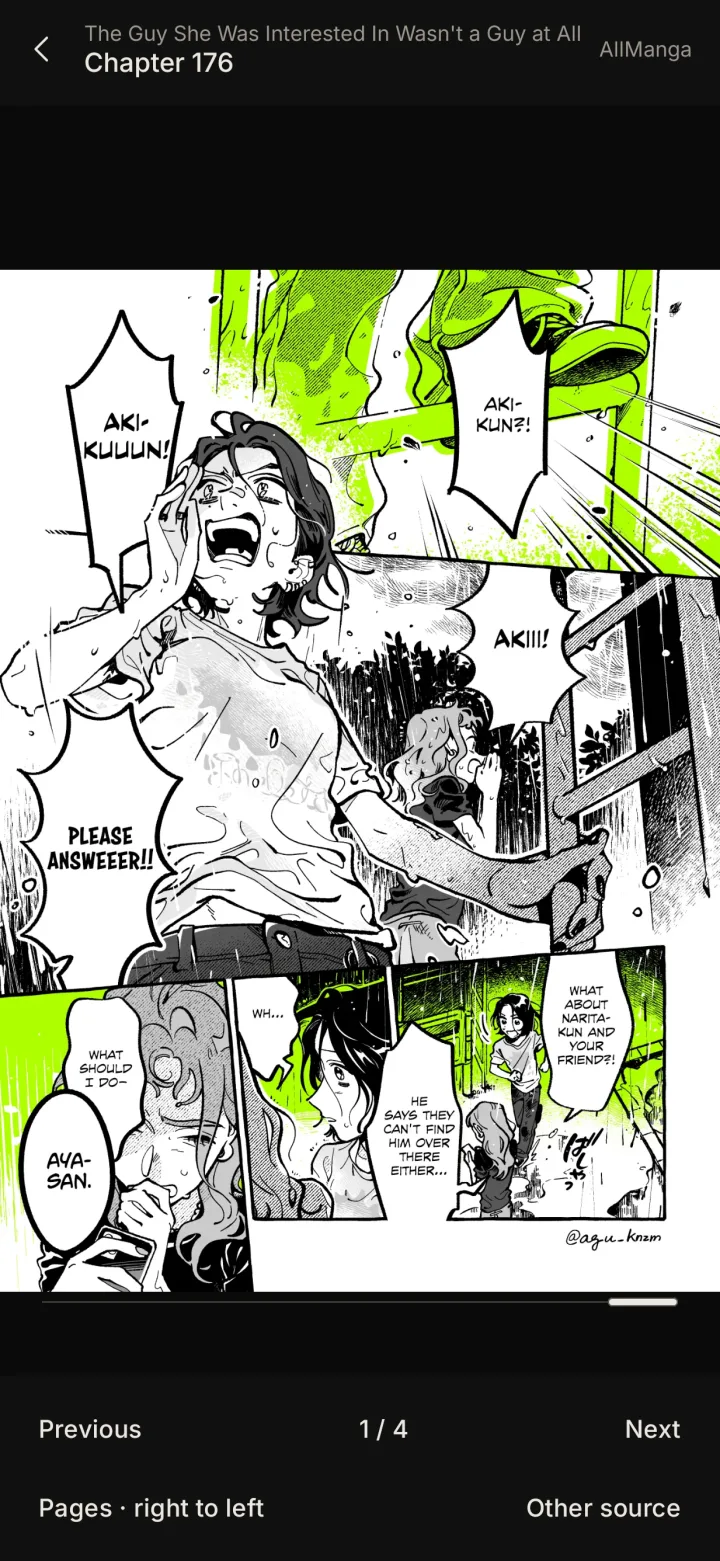
- Tap the middle of the screen to show or hide the controls. They fade on their own when you stop touching the screen.
- Previous and Next move between chapters. The counter shows your page within the chapter.
- Other source reloads the chapter from a different site. Use it when pages look wrong, are missing, or will not load.
Behind the scenes
- If a page fails to load, Mofu quietly tries the next site before showing you an error.
- Some sites cut pages into thin strips. In page mode Mofu skips those sites when it can, and stitches the strips back into whole pages when it cannot.
- Downloaded chapters are read from the phone first, so they work without a connection.
- A chapter is marked finished when you reach its last page, and a title becomes Caught up once you have finished the last chapter available.
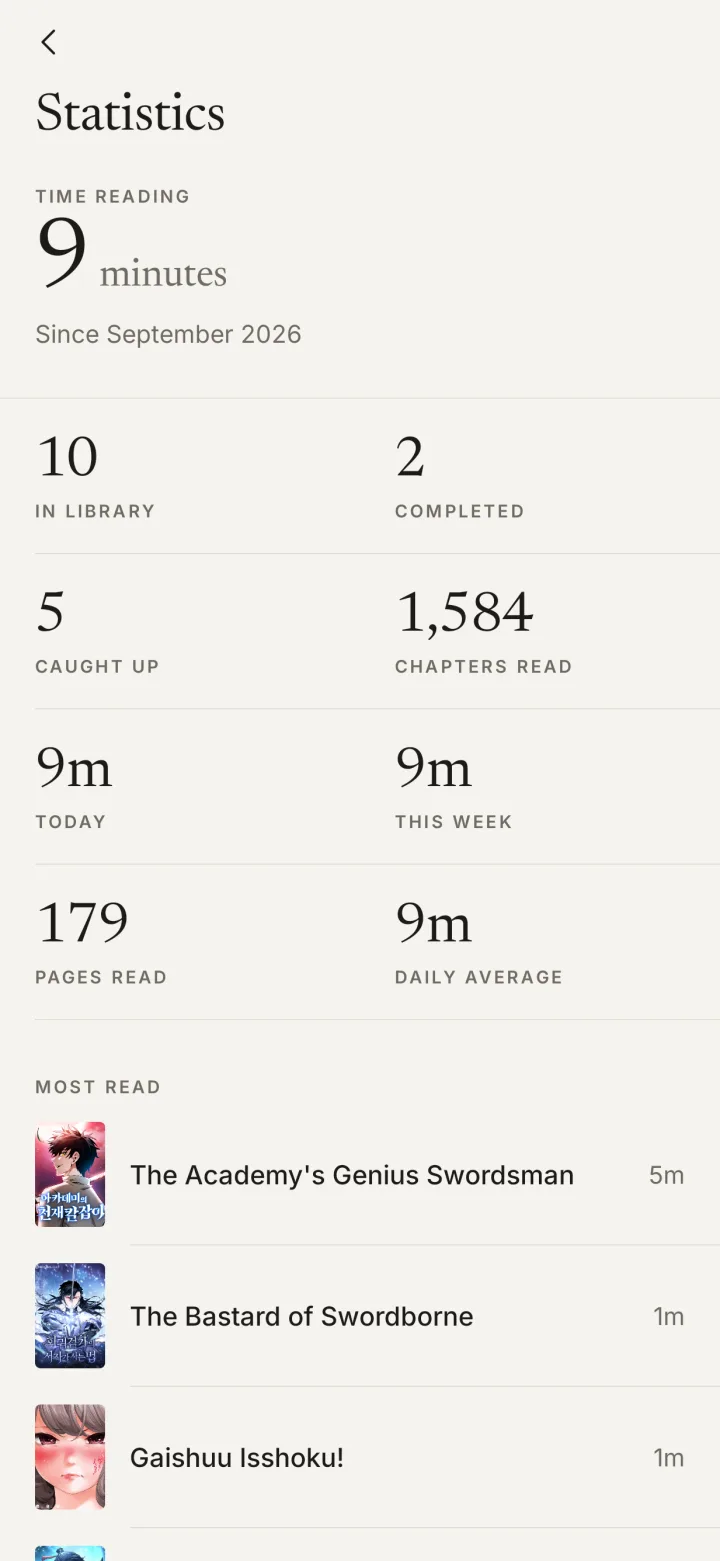
- Reading time is counted only while you are actually reading. It pauses after a few minutes without a page turn, and while the app is in the background.
Updates
New chapters for everything on your shelf, grouped by day.
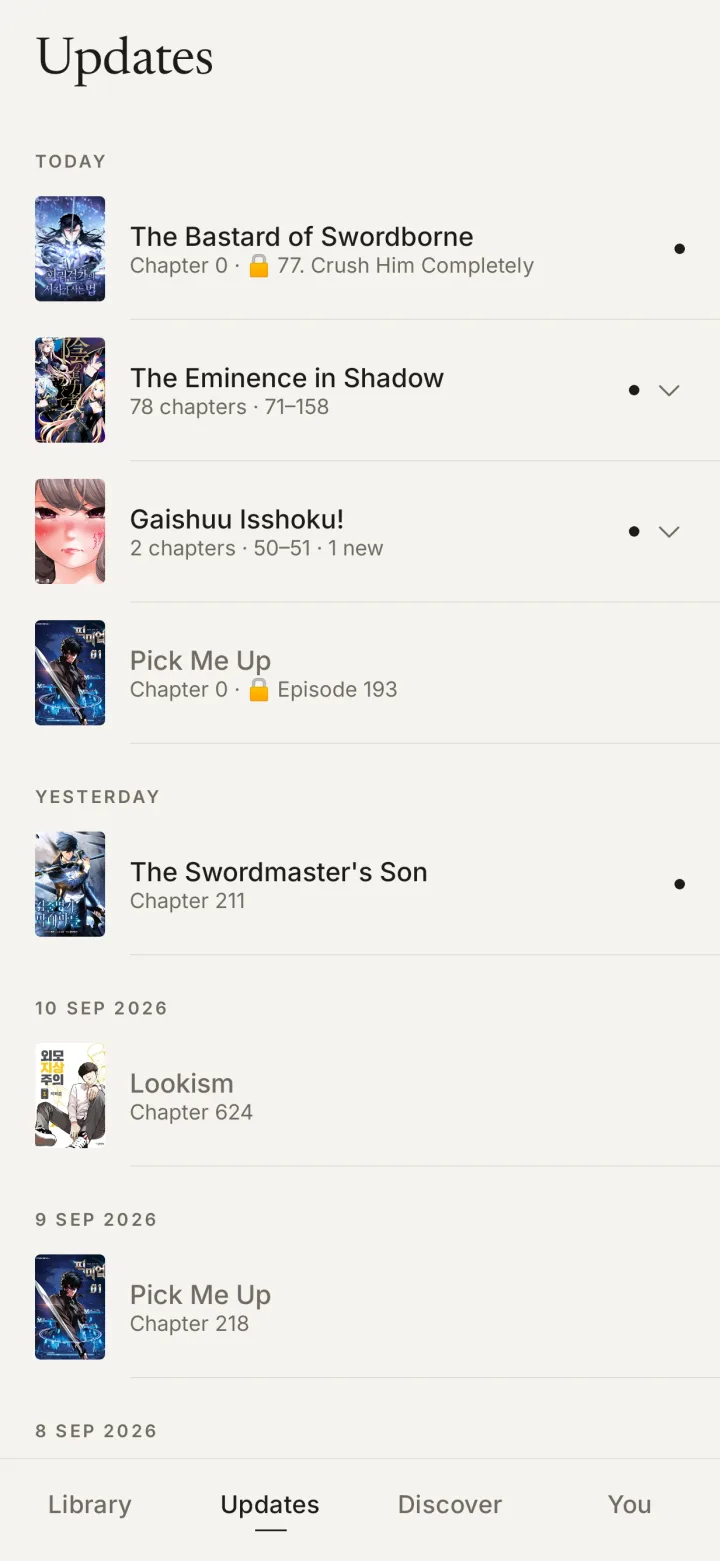
The Updates tab lists chapters released in the last ninety days for titles you follow, newest day first. A small dot marks chapters you have not opened yet.
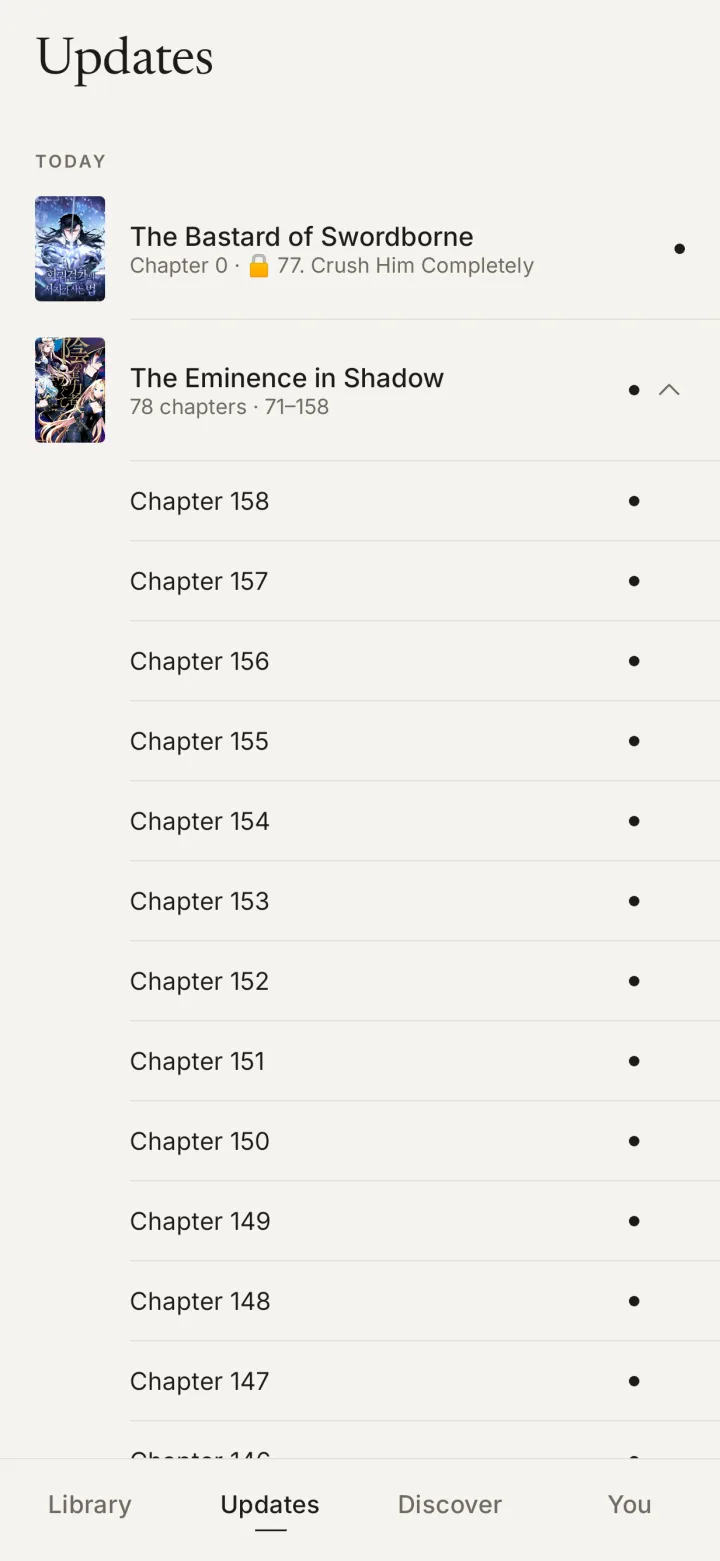
When several chapters of one title arrive back to back, they fold into one row, for example 2 chapters · 50–51 · 1 new. Tap the row to unfold the individual chapters.
- Tap a chapter line to start reading it.
- Tap the cover to open the title page.
- Press and hold a row to open the title page as well.
Release dates come from the sites themselves and are not always tidy. Mofu cross-checks several sites before dating a chapter, so a chapter can appear under a slightly different day than the site you usually read on.
Statistics
A quiet tally of your reading. Open it from the You tab.
Statistics follow your account, so the numbers are the same on every phone you sign in on.
Settings
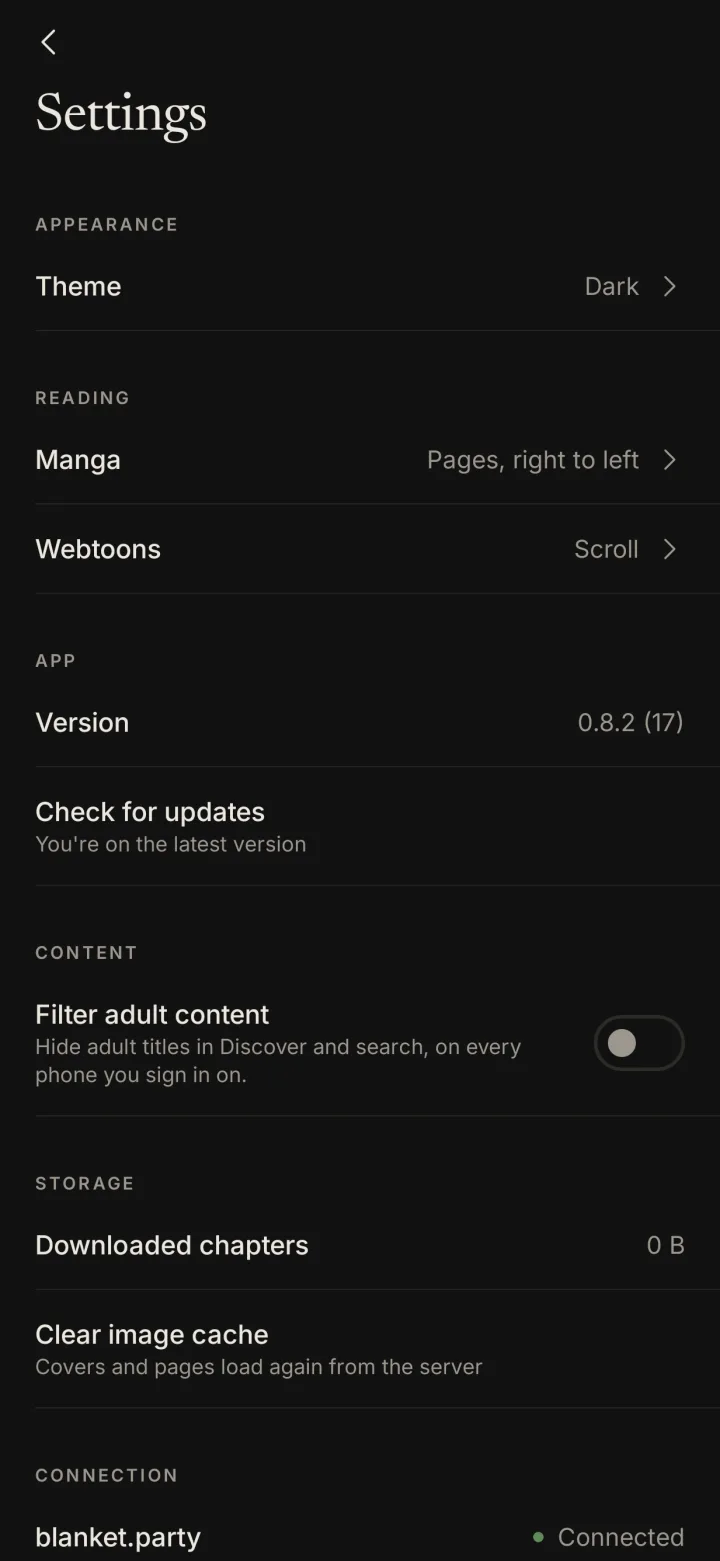
Open You → Settings. Most of it is set once and forgotten.
Account and sync
One username, one password, every phone.
Your account is a username and a password. There is no email address and nothing to verify. Sign in with the same details on another phone and your library, reading progress and reading time are already there.
Progress is saved as you read, so you can stop on one phone and continue on another mid-chapter.
What stays on the phone
- Downloaded chapters and the image cache.
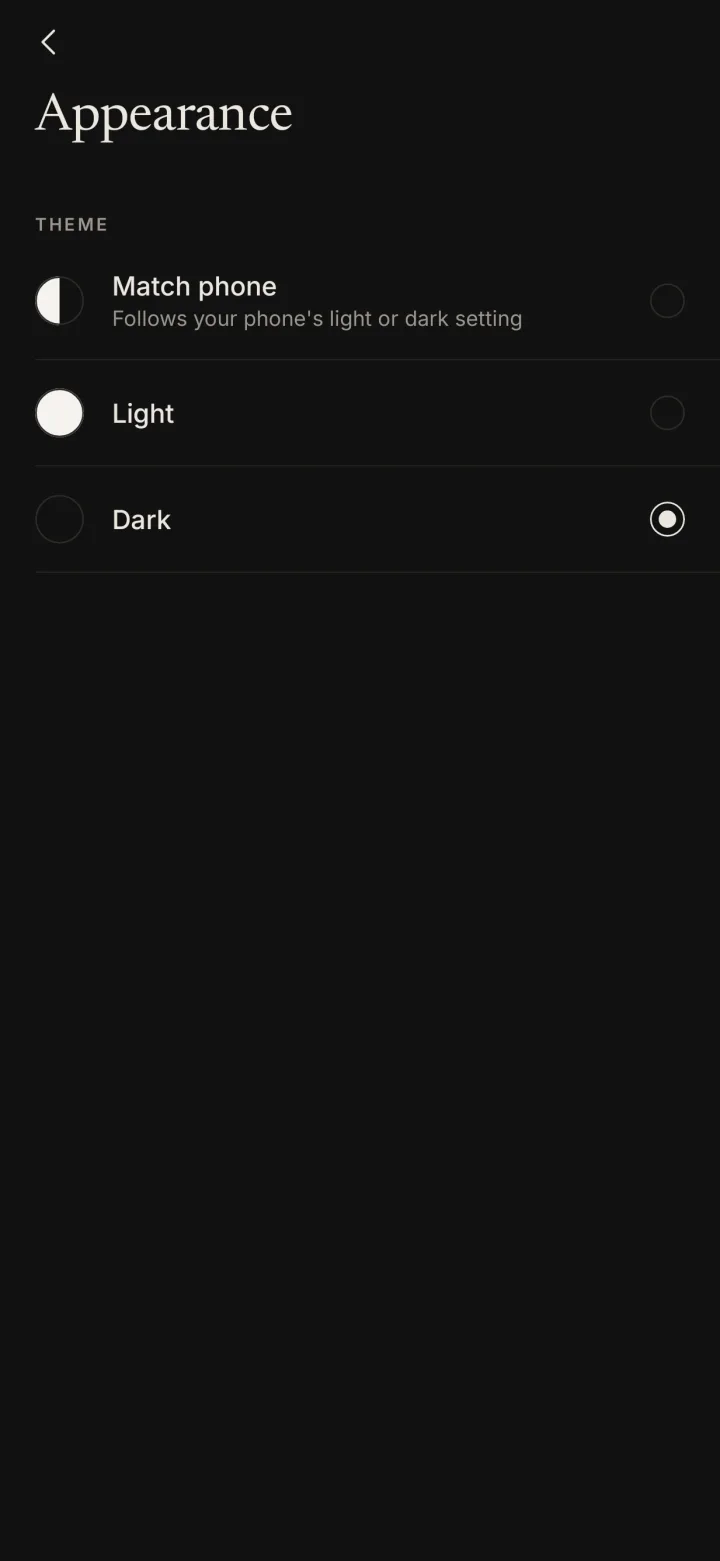
- Appearance and reading defaults.
- Titles you have hidden from Continue reading.
To sign out, open the You tab and tap Sign out.
Because there is no email on the account, there is no reset link. If you forget your password, ask Phxv.
Updating Mofu
You install Mofu once. After that it keeps itself current.
- When a new version is ready, a small dot appears on the You tab.
- Open Settings and tap Check for updates. Mofu downloads the new version, checks that the file is intact, and installs it.
- The first time, Android may ask you to confirm. On Android 12 and newer, later updates usually install without a prompt.
Each version ships with a short note about what changed. You never need to download a file from this site again.
Troubleshooting
The common ones, and what to do.
A chapter looks wrong, or pages are missing
Tap Other source in the reader. Mofu reloads the chapter from a different site. If a page simply failed to load, Mofu already tries the next site on its own before showing an error.
Pages arrive as thin strips
Some sites slice pages into strips. In page mode Mofu avoids those sites when another one has the chapter, and stitches the strips together when it does not. If a chapter still reads awkwardly, switch that title to scroll mode.
Discover or search shows nothing
Check Connection at the bottom of Settings. If Mofu cannot reach blanket.party, wait a moment and try again. Also check whether Filter adult content is hiding what you searched for.
A cover is blank or out of date
Open Settings and tap Clear image cache. Covers and pages load fresh from the server the next time you open them.
Android will not install the app
Make sure you allowed installs from your browser when Android asked, and that the phone runs Android 8 or newer. If the download was interrupted, download it again from this site.
My progress did not show up on another phone
Make sure both phones are signed in to the same account, and that the first phone had a connection while you were reading. Progress syncs as you read, and the library refreshes when you return to the app.
Check for updates says I am on the latest version
Then you are. The version shown in Settings is the one installed, and this site always offers the same latest release.
FAQ
Short answers to the questions that come up most.
Is Mofu on the Play Store?
No. Mofu is shared privately and installed from this site. Updates come from inside the app.
Where do the chapters come from?
From dozens of public manga sites. Mofu finds each title across them, merges the chapters into one list, and chooses which site to read from. You never pick a source by hand unless you want to.
Does it work on iPhone?
Not yet. Mofu is an Android app.
Can I read without a connection?
Yes. Download chapters from a title page and they open from the phone, connection or not.
Do I need an email address?
No. An account is a username and a password.
Is there a Discord?
Coming soon.